Radio Stream Not Playing? 8 Fixes That Usually Work
October 08, 2026 · Updated November 02, 2026
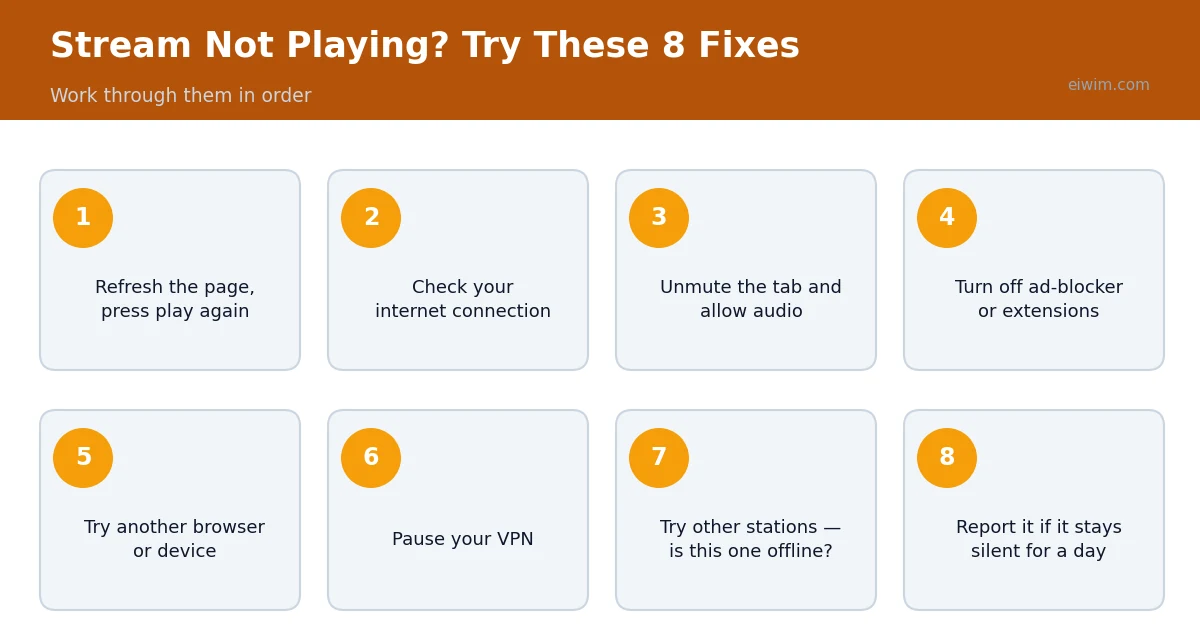
Sometimes you press play on an online radio station and nothing happens, or the audio stutters and stops. Most of the time the cause is simple. Work through these checks in order.
1. Refresh the page and press play again
A stream can fail to connect on the first attempt. Reloading the page and pressing play once more fixes a surprising number of cases.
2. Check your internet connection
Open another website or video. If that is slow or fails, the problem is your connection, not the station. Move closer to the router or switch between Wi-Fi and mobile data.
3. Allow audio in your browser
Browsers block sound until you interact with a page. Make sure the tab is not muted, that the site is allowed to play audio, and that your device volume is turned up.
4. Turn off extensions that interfere
Ad blockers and privacy extensions sometimes block the connection to a stream. Temporarily disable them for the site and try again.
5. Try a different browser or device
If the stream works on your phone but not your laptop (or the other way round), the issue is local to the first device. Updating the browser often solves it.
6. Pause your VPN
Some stations restrict streams to certain countries because of broadcasting rights. A VPN can make it look as if you are in a blocked region. Disconnect it and try again.
7. Check whether the station is offline
Stations sometimes go off the air for maintenance or change their stream address without notice. Try a few other stations on the site. If they work, the station you wanted is probably offline for now. Visit the station's own website to see whether it has announced a change.
8. Report the problem
If a station stays silent for more than a day, use the report option on the station page so the listing can be checked and updated. Reports are how directories keep their stations accurate.
Why does a stream keep buffering?
Buffering usually means your connection cannot keep up with the stream. Lower-bitrate stations need less bandwidth, so choosing a 64 kbps stream can help on a weak connection. Closing other apps that use the internet also frees up capacity.
If none of these steps work, try a different station from the same genre while the first one recovers.
Extra fixes for phones
Phones add a few problems of their own. Battery-saving modes may pause audio when the screen is off, so check the battery settings for your browser or radio app and allow it to run in the background. Mobile data can be restricted by a data-saver setting, which blocks audio in some apps. If you move between Wi-Fi and mobile data, the stream may stop, so refresh the page after the connection changes. Make sure the silent switch is off and that media volume, which is separate from ringer volume, is turned up. Finally, update your browser or app, because older versions sometimes struggle with newer stream formats.
Extra fixes for computers
On a computer, the most common problems are browser settings and conflicting audio devices. Check that the correct output is selected, especially if you have used Bluetooth headphones or an HDMI display recently, since sound can be sent to a device that is not connected. Click the speaker icon in the browser tab to make sure the tab is not muted. Clear the browser cache or open the page in a private window to rule out stored data causing trouble. Disable extensions one at a time, since privacy and ad-blocking tools sometimes interfere with streams. A restart of the browser, or of the computer, solves a surprising number of puzzling problems.
How to tell where the problem is
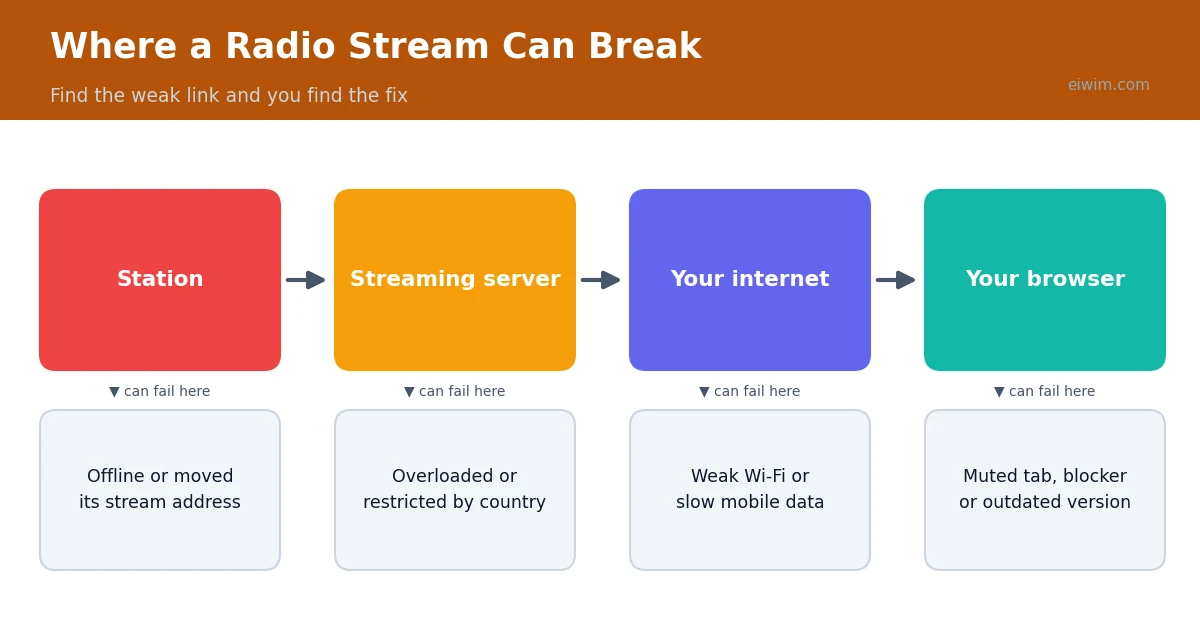
A few quick tests show whether the issue is the station, your connection or your device. First, try a completely different station. If it plays, your device and connection are fine, and the first station is probably offline. Second, open another website or video. If that is slow or fails, your connection is the problem. Third, try the same station on a different device or browser. If it plays there, something on the first device is responsible. Working through these tests in order takes only a couple of minutes and saves you from guessing. If you suspect the station, browse similar ones in the same genre while it recovers.
Prevent future problems
- Keep your browser and apps updated.
- Use a stable connection, and move closer to the router if the stream often buffers.
- Choose lower-bitrate streams on slow connections. Our guide to bitrate and stream quality explains how.
- Save more than one favourite station in each genre so you always have a backup.
- Be wary of sites that insist on installing a player. Real radio streams play in the browser.
When to wait and try later
Sometimes the problem is simply out of your hands. Stations perform maintenance, servers move, and popular events can overload a small stream. If other stations work and one does not, wait an hour or until the next day and try again. If it is still silent after a day or two, report it so the listing can be reviewed. Most outages are temporary, so patience is often the best fix.
A five-minute troubleshooting routine
If you would like a fast routine to follow, use this order. First, refresh the page and press play. Second, test another station. Third, check another website to confirm your connection. Fourth, check the volume on both the page and the device, and make sure the tab is not muted. Fifth, try a different browser. If all five fail, restart the device and your router, since a fresh connection often clears hidden problems. Write down which step solved it, because the same cause often returns, and knowing it saves time. If it is still not working, leave the station for a while and listen to something else from the genres page.